数据库自动化
通过自动化处理工作中最繁琐的部分来提高效率 🔁
跳转到常见问题数据库自动化是一系列在数据库发生特定更改时自动执行的操作。自动化包含触发器(启动自动化的事件)和操作(自动化产生的效果)。数据库自动化旨在节省你的时间并简化工作,其复杂程度可以根据你的需求从简单到复杂不等。
数据库自动化可用于多种用途,包括:
当任务状态发生更改时,将其分配给特定人员。
当页面添加到数据库时,向频道发送 Slack 通知。

Note:
Automations won’t take action on any pages whose access is restricted. You can check and change page access in the share menu.
Database automations can't be triggered by other automations. Button actions, however, can trigger database automations. For example:
A recurring template automation will not trigger a database automation.
A database automation creating a page in another database will not trigger a database automation.
A user clicking a button that creates a page will trigger a database automation.
数据库自动化适用于 付费方案 上的 所有平台。
数据库自动化可由 拥有数据库全部权限的付费方案用户 创建、编辑或删除。
但是,Slack 自动化 只能由自动化 创建者 编辑。
免费版用户可以创建 Slack 通知 自动化,但不能创建其他类型的自动化。
免费版用户可以使用 模板 中的现有自动化,但无法对其进行编辑。
要创建数据库自动化:

Did you know you can also add a button property to your database? With the click of a button, actions can be taken on your database on your behalf. Learn more here →
自动化可以有一个或多个触发器。设置自动化时,你可以决定是在 任一条件满足时 还是在 所有条件均满足时执行。
Note: If you have multiple is edited triggers that must all occur for your automation to take place, those triggers need to happen within a small window of about three seconds. If they don’t, your automation may not be triggered properly. To avoid this, you can:
Create separate automations for each trigger.
Use a more specific trigger than
is edited, likeis set toorcontains.
你可以从三种类型的触发器中进行选择:
页面已添加表示当新页面添加到你的数据库时,将触发自动化。属性已编辑表示当你数据库中的特定属性被编辑时,将触发自动化。对于名称、人员、数字、文本、选择和关联属性,你可以选择哪些编辑会触发自动化。例如,你可能在 Notion 数据库中有一个联系人列表,并设置了一个自动化,其触发条件为电话号码以 732 开头,而操作则是将该联系人的状态设置为新泽西州。每 {frequency}表示自动化将会循环执行。触发器会根据你设置的频率反复触发。你可以将自动化设定为每天、每周、每月等执行,另外,还可设置触发时间、自动化开始及结束的日期以及时区。Note: The
Every {frequency}trigger works with all automation actions except forEdit property.
你可以为触发器设置多个条件,即需要满足两个或更多条件才能触发自动化。请注意,循环触发器(例如你设置为每周、每月等循环触发的触发器)不能与其他类型的触发器共用。
Note: If you’d like your automation to add or edit pages and databases, make sure that you have permission to edit those pages and databases. Additionally, make sure edited pages are available are not Private or Shared. Otherwise, your automation won’t work.
自动化可以执行一个或多个操作。你可以从多种操作中进行选择:
编辑属性会编辑你当前所在数据库中页面的属性。对于多选、人员和关联属性,你可以单独添加或删除特定的值,而无需一次性修改所有值。例如,你可能有一个任务数据库,在任务名称包含“blog”时,即便已有其他人员被分配,你的名字仍会被添加到人员属性中。添加页面到将页面添加到你选择的数据库中,并编辑该页面的属性。编辑页面在将编辑你选择的数据库中的页面及其属性。发送通知给将向你在 Notion 工作区中的特定人员发送通知。收件人最多可包含工作区中的 20 人,或与你数据库中特定人员属性关联的人员。添加你希望随通知发送的消息。发送邮件到将从你的 Gmail 帐号向一个或多个收件人发送电子邮件。了解更多信息请见下方。发送 Webhook将向指定的 URL 发送 HTTP POST 请求。在 本文 → 中了解更多信息。发送 Slack 通知到将向你指定的 Slack 频道发送自定义通知。此功能仅在 Plus、Business 和 Enterprise 方案中可用。了解更多请点击 这里 →。定义变量将允许你使用提及和公式创建自定义变量,然后你可以在其他数据库自动化操作中使用该变量。下面了解更多相关信息。

Get more inspiration for using database workflows in this guide →
发送(电子)邮件到
Note:
You need a Gmail account to use this automation.
Once someone has linked their Gmail account to an automation, only they will be able to edit the automation. Others will only be able to use the automation.
Emails sent using this automation may take up to two minutes to arrive in your recipient’s inbox.
Be mindful of Gmail’s limits for how many recipients a message can have, or how many emails you can send in a day.
数据库自动化的 发送(电子)邮件到 操作将在触发器触发时,从你的 Gmail 帐号向一个或多个电子邮件地址发送邮件。如果你想通过邮件提醒某人完成逾期任务,或通知团队所有未解决项目的状态,这会非常有帮助。
要设置发送电子邮件的自动化:
点击数据库顶部的
⚡,然后选择新建自动化或现有自动化。选择
新建操作或添加操作→发送(电子)邮件到……。如果你的 Notion 帐号已绑定到 Gmail 帐号,你会在
发送邮件的帐号旁看到你的电子邮件地址。如果你想为此自动化使用另一个 Gmail 帐号,请点击你的电子邮件地址 →添加 Gmail 帐号。你可以设置电子邮件的各个部分:
To:这可以是一个人员属性(例如Whoever triggered或Page creator)、你在 Notion 工作区中的某个人,或一个特定的(电子)邮件地址。该邮件地址可以是外部地址——不必局限于属于你工作区或组织中的人员。在
To字段旁边选择CC/BCC,以选择性地抄送或密送其他人。
Subject:输入电子邮件的主题。如果你希望主题包含来自触发页面的属性、时间或日期、Notion 工作区中的人员或群组,或者链接到工作区中的某个页面,请在Subject字段中选择@。如果你想为主题创建函数,请在Subject字段中选择∑。Message:为你的邮件输入消息。如果你希望消息包含来自触发页面的属性、时间或日期、工作空间中的人员或群组,或者包含指向工作空间中页面的链接,请在Message字段中选择@。如果你想为消息创建函数,请在Message字段中选择∑。Send with display name:当收件人收到你的邮件时,这个可选的显示名称会出现在邮件旁边。如果你希望显示名称包含来自触发页面的属性、时间或日期、工作空间中的人员或群组,或者包含指向工作空间中页面的链接,请在显示名称字段中选择@。如果你想为显示名称创建函数,请在显示名称字段中选择∑。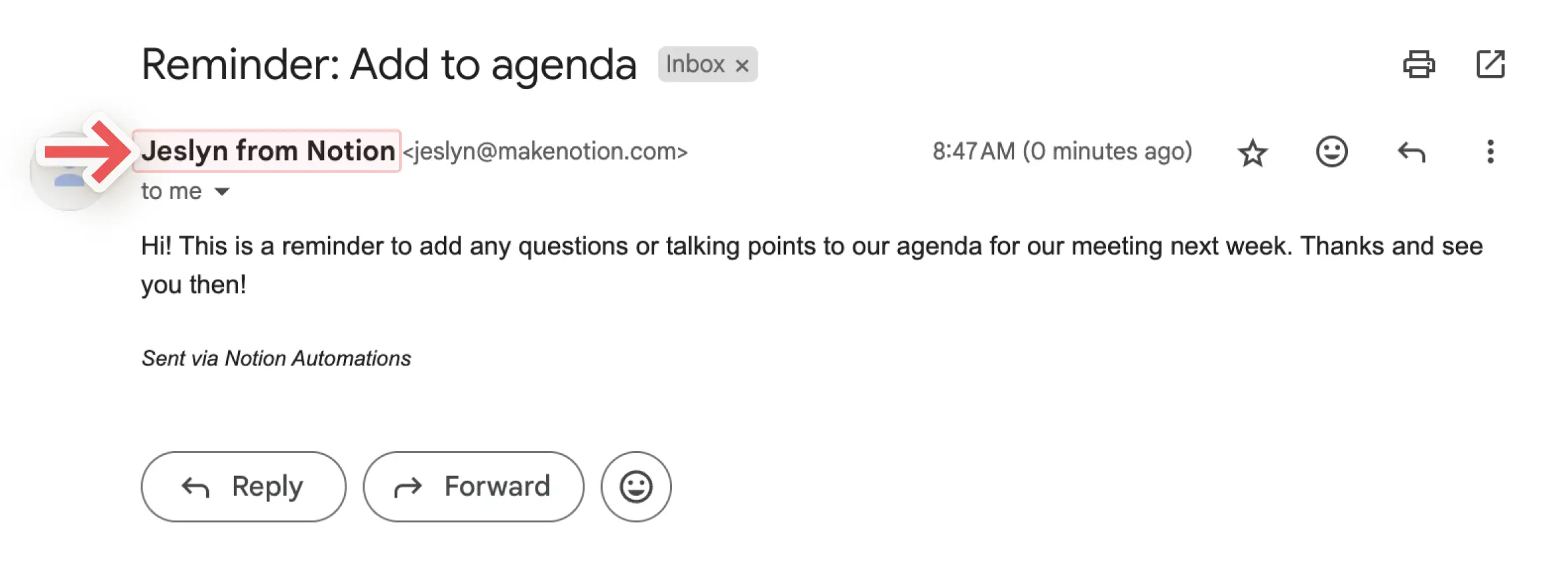
Send replies to:如果你希望邮件回复发送到发送邮件时使用的地址以外的其他地址,你可以使用这个可选设置,将回复发送到人员属性或工作空间中的某个人。
定义变量
你可以使用提及和函数来定义自定义变量。之后,你可以在其他数据库自动化操作中使用这个变量。要定义变量:
点击数据库顶部的
⚡,然后选择新建自动化或现有自动化。选择
新建操作或添加操作→定义变量。点击
Variable 1为变量命名、编辑函数或创建副本。你也可以选择Add variable。在变量字段中选择
@或∑来定义你的变量。你可以在其他自动化操作中使用这些变量。
让我们来看一个示例。比如说,假如你想设置自动化:当父任务标记为完成时,所有子任务也会自动变为完成。
点击数据库顶部的
⚡,然后选择新建自动化或现有自动化。选择
Status set to Complete作为触发器。选择
New action或Add action→Define variables。在
Variable 1下方的字段中选择∑。在打开的窗口中,从左侧的属性列表中选择
Trigger page。在公式中的
Trigger page后面加上句点,使你的公式显示为Trigger page.。完成此操作后,你将在左侧的属性列表中看到触发页面的属性。选择
Sub-item。你的公式现在应显示为Trigger page.Sub-item。保存你的公式。现在,你的自定义变量已被定义为触发自动化页面的子项,也就是说,标记为完成的页面。现在,在你的数据库自动化设置中,选择
添加操作。选择
编辑页面...。打开
Select database下拉菜单并选择Variable 1。这意味着自动化将编辑与 Variable 1 关联的页面,也就是说,编辑与标记为完成的页面关联的子项。打开
编辑属性下拉菜单并选择状态。打开
选择下拉菜单并选择完成。选择
Save。
下次当你将带有子项的父项标记为完成时,所有子项的状态也会随之变为完成!
Note:
At this time, mentions and formulas can only be used in database automation actions, not triggers.
Formulas can’t be used when sending Slack notifications.
你可以在数据库自动化操作中使用提及和函数,来让自动化更好地为你服务。例如:
你可能希望在数据库中新建页面的名称中提及日期。
你可能希望设置数据库自动化,向某人发送提及特定页面的通知。
你可能希望在工单解决时自动向某人发送消息,并在消息中使用函数来计算完成工单所花费的时间。
要在数据库自动化操作中包含提及或函数,请执行以下操作:
选择数据库顶部的滑块图标 →
自动化。选择
新建操作或添加操作。找到你想要的操作后,选择它。在设置自动化操作时,如果你想提及日期、人员、页面或触发页面中的属性,请在字段中选择
@。如果你想创建函数,请在字段中选择∑。完成后选择
保存。
Notion AI can help create and edit formulas, as well as answer questions about formulas. Learn more here →
为确保你的自动化正常运行,我们会帮助你找出问题所在。
如果你的自动化在 设置过程中遇到任何错误:
在构建或编辑自动化时,你会看到有关错误位置和具体内容的信息。
在进行必要更正之前,你将无法保存该自动化。
如果你的自动化之前运行正常但现在遇到错误,它将会被暂停。
在某些情况下,我们会通知你错误信息,比如你的自动化所更新的数据库或数据库属性缺失,或者像 Gmail 或 Slack 这样的第三方连接不再有效或需要验证时。
在其他情况下,包括函数无法正常执行或 Webhook 出现问题时,你可能不会收到通知。
你可以点击通知直接跳转到出错的自动化进行修复,使其能再次使用。修复后,你需要手动将自动化开启或取消暂停。为此:
打开与你的自动化关联的数据库,然后选择
•••→自动化。将鼠标悬停在你刚修复的自动化上,然后选择
•••。将
Active切换至已启用。
如果自动化尝试在自动化运行时为空或未定义的字段执行日期计算(例如
dateAdd),则可能会失败。作为解决方案,创建一个仅包含字段不为空的条目的筛选视图,并将自动化配置为仅在该视图上运行。
如果自动化应用于过滤掉相关条目的数据库视图,则可能会失败。请确保自动化在包含其需要操作的所有条目的视图上运行。
要查看和管理数据库的所有现有自动化:
点击数据库顶部的
⚡。将鼠标悬停在自动化上并点击
•••。选择
编辑、暂停或删除。
常见问题
How frequently is the database scanned for “changes” in properties?
How frequently is the database scanned for “changes” in properties?
Database automations work over a three second window. For example, within this three second window, a user can remove a trigger and delete any changes, resulting in no property change to the automation.
Do automations work on pages in the entire database, or pages in a single database view?
Do automations work on pages in the entire database, or pages in a single database view?
Either one. During the creation process, you can specify if the automation should run on pages in the entire database, or in a specific view. If any filters in that view change, the automation will then apply to the adjusted list of pages.
Can guests with full access to a database create automations?
Can guests with full access to a database create automations?
Unfortunately, guests can't create database automations.
Why isn’t my database automation triggering?
Why isn’t my database automation triggering?
If your database automation isn’t triggering, it could be because:
The automation is set to be triggered by another automation. Automations can’t currently trigger other automations. Try using a different, non-automated trigger instead.
The page no longer matches a view’s filters after it’s edited. Automations only run if the page still matches the view when the trigger occurs.
The database is locked.